 Pebble
Set up your first dog in Pebble
Welcome to Pebble. This is the five-minute setup we recommend for every new user — it takes almost no time, and it makes every future week easier. By the end you'll have a dog profile with everything you'd want at a vet's front desk.
1. Add your dog
Open Pebble and tap Add Dog from the Dogs tab (or during onboarding if this is your first launch). You'll be asked for the essentials:
- Name — what you actually call them.
- Breed — start typing and Pebble matches from 295 breeds. Not there? Use "Add as custom breed" and it's yours.
- Date of birth — even an approximate month is enough for age display.
- Sex — male or female.
That's the minimum. Save and you'll see them on the Dogs list. Everything else is optional and can be filled in later.
2. Add a profile photo
From the details screen, tap the photo circle → Take photo or Choose from library. Pebble opens a square crop so the avatar looks tight everywhere it appears. Photos are automatically compressed and backed up.
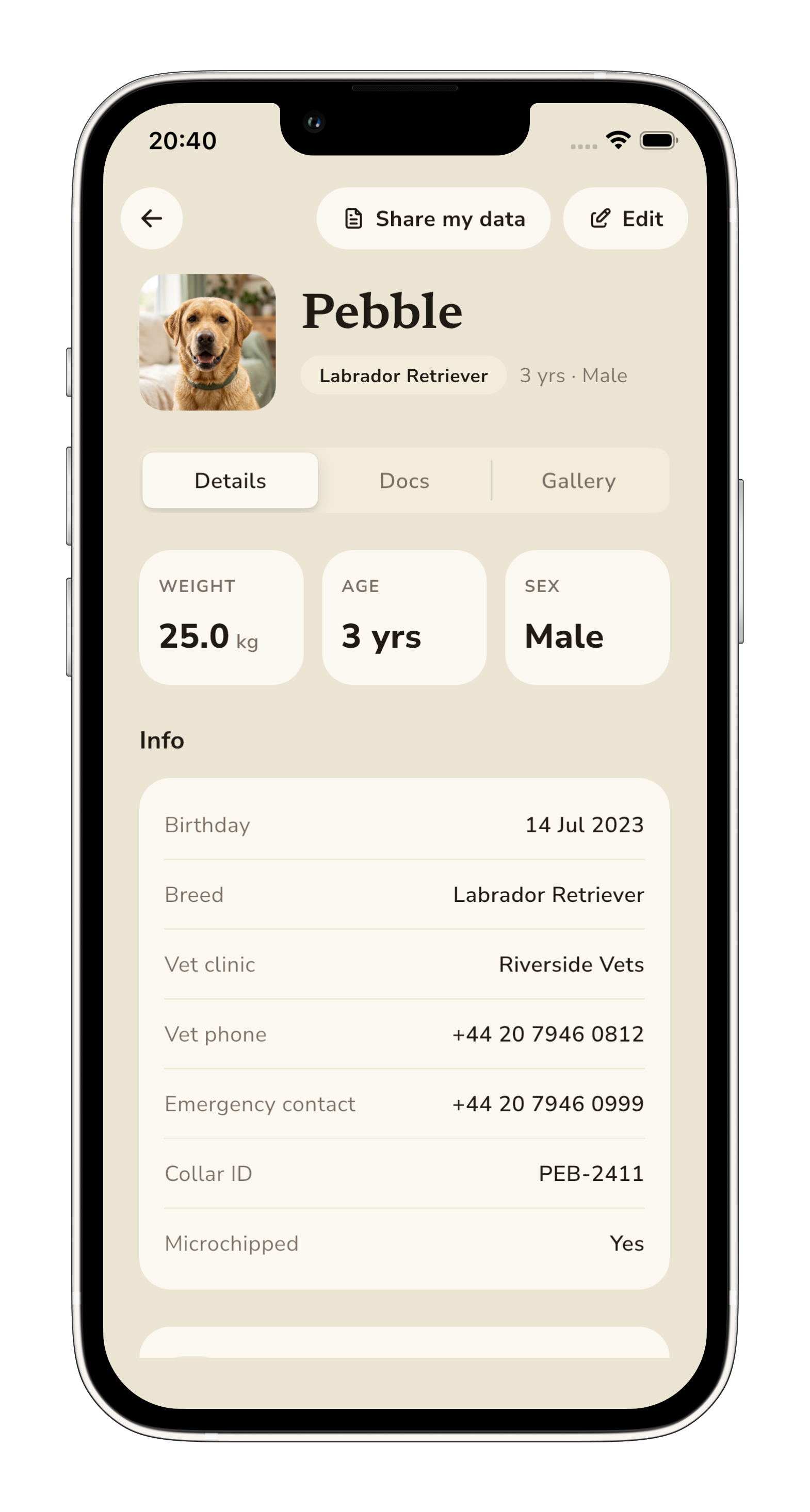
3. Fill in the health & safety info
Tap Edit on the details screen and fill in the fields that matter most in an emergency:
- Vet clinic name and phone — the number you'd call at 8am on a Sunday.
- Emergency contact — the friend or partner who'd collect them if you couldn't.
- Microchip status — a simple yes/no; you can add the number later.
- Collar ID — the tag on their harness, if they have one.
- Weight — kg or lbs, whichever you use. Pebble converts either way.
- Notes — the little things: "hates the hoover", "loves squeaky toys", "allergic to chicken".
4. Snap your first document
Tap the Docs tab. Add your dog's vaccination card, insurance policy or pedigree — one photo per document. Everything is sorted by category (Vaccinations, Vet records, Insurance, Other) and safely backed up. Next time you're at the vet and asked for their booster date, it's a tap away.
5. What to do next
- Set up your first reminder — flea treatment, worming or the next booster. See our Reminders guide.
- Log a walk — even a short one, so you can see the flow. See our Walks guide.
- Write your first diary entry — a photo and a line about your day together.