 Pebble
Never miss a vet visit or dose again
Reminders are the quiet superpower of Pebble. Set them once and your lock screen becomes your dog's diary manager — flea treatments on the first of the month, meds every morning, the annual booster next spring. This guide walks through setting them up so they actually reach you at the right time.
1. Allow notifications
The first time you add a reminder, iOS asks whether Pebble can send you notifications — say Allow. Without this, reminders are still saved but won't buzz your phone. You can flip it back on later in Settings → Notifications → Pebble.
2. Add your first reminder
Open the Reminders tab and tap + Add Reminder. You'll set five things:
- Title — what you'll see on the lock screen. Short is better: "Flea drops", "Booster", "Groomer".
- Dog — which one it's for (or every dog, if the household shares it).
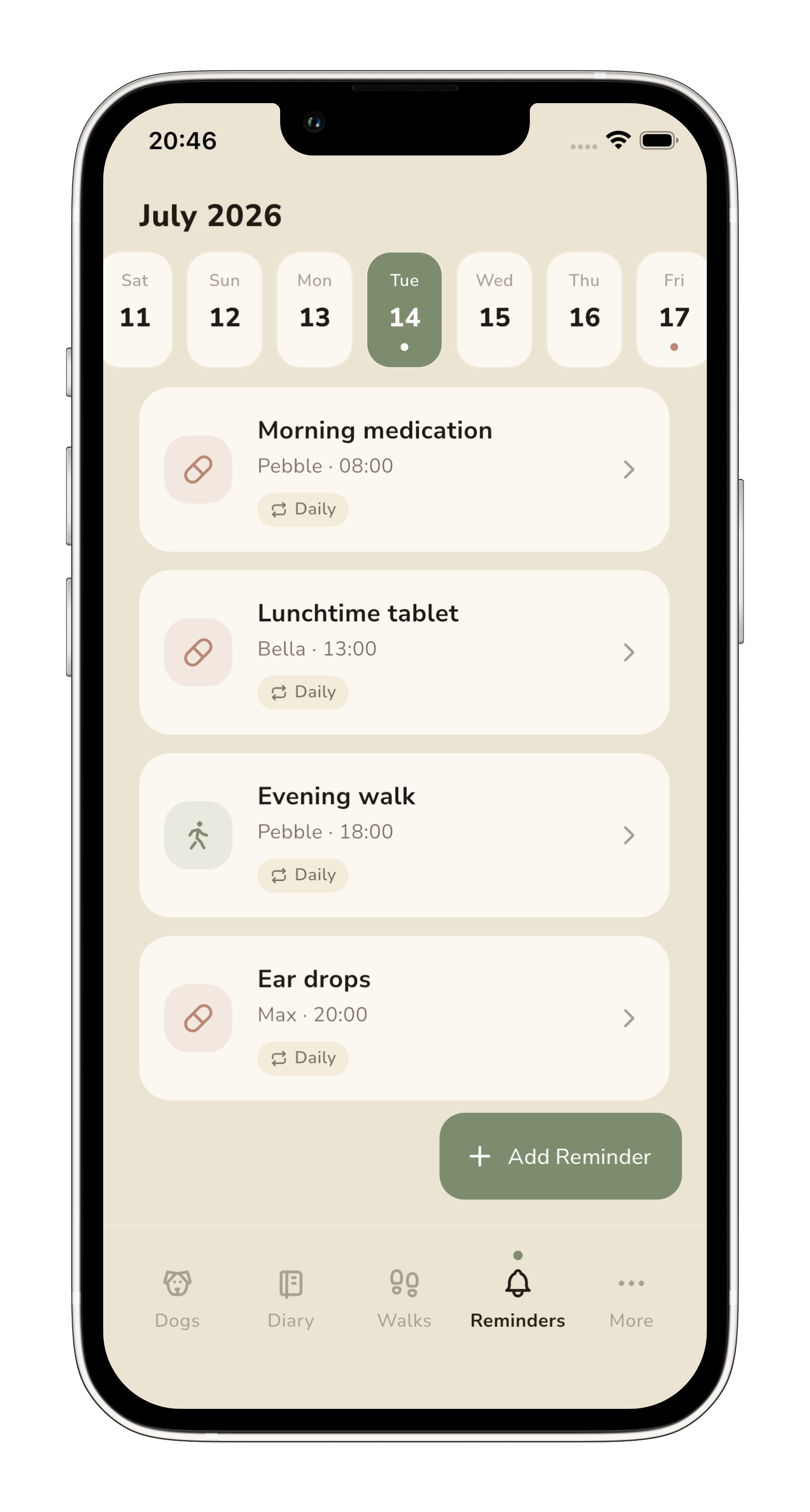
- Category — Medication, Vaccination, Vet, Grooming, Walk or Other. The chosen category colours the tile and adds an icon so daily lists are easy to scan.
- Date & time — when the first one fires.
- Recurrence — none, daily, weekly, monthly or yearly.
3. Choose the right recurrence
The recurrence field is where most of the value comes from. Some patterns that work well:
- Daily — morning tablets, ear drops, evening walk.
- Monthly — flea/tick treatments, worming tablets.
- Yearly — annual boosters, dental checks, insurance renewal.
- None — one-off appointments and grooming visits.
4. Review your day at a glance
The Reminders tab opens on today by default, with a horizontal strip of dates you can swipe through. Tap a date to see everything due — colour-coded by category so medication, walks and vet visits stand out from each other.
5. When one fires
You'll get a native iOS notification on your lock screen. Tap it to open Pebble and mark it done. If it's a recurring reminder, Pebble automatically schedules the next occurrence — you never have to re-create it.
What to do next
- Add reminders for anything on a schedule — vaccinations, flea treatments, meds, grooming.
- Store the paperwork behind each one — see the Getting started guide for how to add documents.
- Log the walks you're already doing — see the Walks guide.